Managing Locales and Currencies in Broadleaf
Internationalization in Broadleaf Commerce involves configuration at multiple levels e.g. tenant, application, catalog, as well as across microservices e.g search services — depending on your business needs. This article outlines the key areas where you can set up and manage allowed_locales and allowed_currencies, as well as extend support for additional locale support outside of the default configurations.
Setting allowed_locales and allowed_currencies at the Tenant Level
Tenants are managed directly in the database—there is currently no UI for managing them.
Every locale (and currency) you want to use across applications must first be defined in the tenant’s allowedLocales and allowedCurrencies, in addition to being configured at the application level.
One option is to create a new liquibase changeset to update your tenant configuration. For example, to update the allowedLocales for your Tenant:
<changeSet author="my-company" id="tenant-my-company-updates-1"
labels="tenant">
<update tableName="BLC_TENANT">
<column name="ALLOWED_LOCALES"
value="["ar_EG", "en_US", "en", "en_GB"]" />
<where>id='${blcTenantId}'</where>
</update>
</changeSet>
Configuring allowed_locales and allowed_currencies per Application
From the Admin UI, you can configure locales and currencies for each application.
This allows you to further refine locales depending on the needs of different applications under the same tenant.
 Example: One eCommerce storefront application may only support
 en_US and es_MX, while another storefront application may additionally support fr_CA.

Associating Locales and Currencies with Catalogs, Price Lists, and Offers
Once locales and currencies are configured at the tenant and application levels, they can be applied to specific catalogs, price lists, or offers.
This allows for highly granular localization strategies, ensuring that customers see the correct products and prices for their market.
Example:
- Catalog A →
en_US,USD - Catalog B →
fr_CA,CAD
Adding Additional Locales for Translation Mode in Admin
Broadleaf provides an easy way to add new locales to support translatable entities in the Admin UI.
For step-by-step instructions, see the documentation:
 Admin Translation Features
This ensures that business users can provide translations for product descriptions, content, and other translatable fields.
Supporting Static Admin Translations for Messages and Labels
In addition to dynamic translations, Broadleaf Admin also supports static text translations.
These can be configured via the property: VITE_ALLOWED_LOCALES
For details, see the documentation:
Static App Text Internationalization
This enables multilingual labels, messages, and system UI elements in the Admin itself.
Additional Locale Support Configuration for Solr
Broadleaf’s default Solr image provides limited support for a subset of locales.
If your locale is not supported (or you would like to enhance support for existing locales) out of the box, you will need to customize the Solr schema.
General Steps for Adding a New Locale
- Review the existing Solr
schema.xmlandsolrconfig.xml. - Identify language-specific analyzers, filters, or tokenizers that may benefit your locale.
- Create new dynamic fields for all out-of-box string types (
*_s,*_txt,*_tta, etc.) and any custom fields. - Apply updates:
- For live/existing environments → Update schema via API.
- For development/new deployments → Build a custom Docker image with your updated schema.
This ensures full-text search, faceting, and indexing work correctly for new locales.
 HINT: Remember that you can always review the out-of-box broadleaf Solr configuration (e.g.
 schema.xml by downloading the Search Component from your manifest. We recommend reviewing the existing languages configured already. We also recommend reviewing the official SOLR Documentation describing field setup and configuration in much more detail.
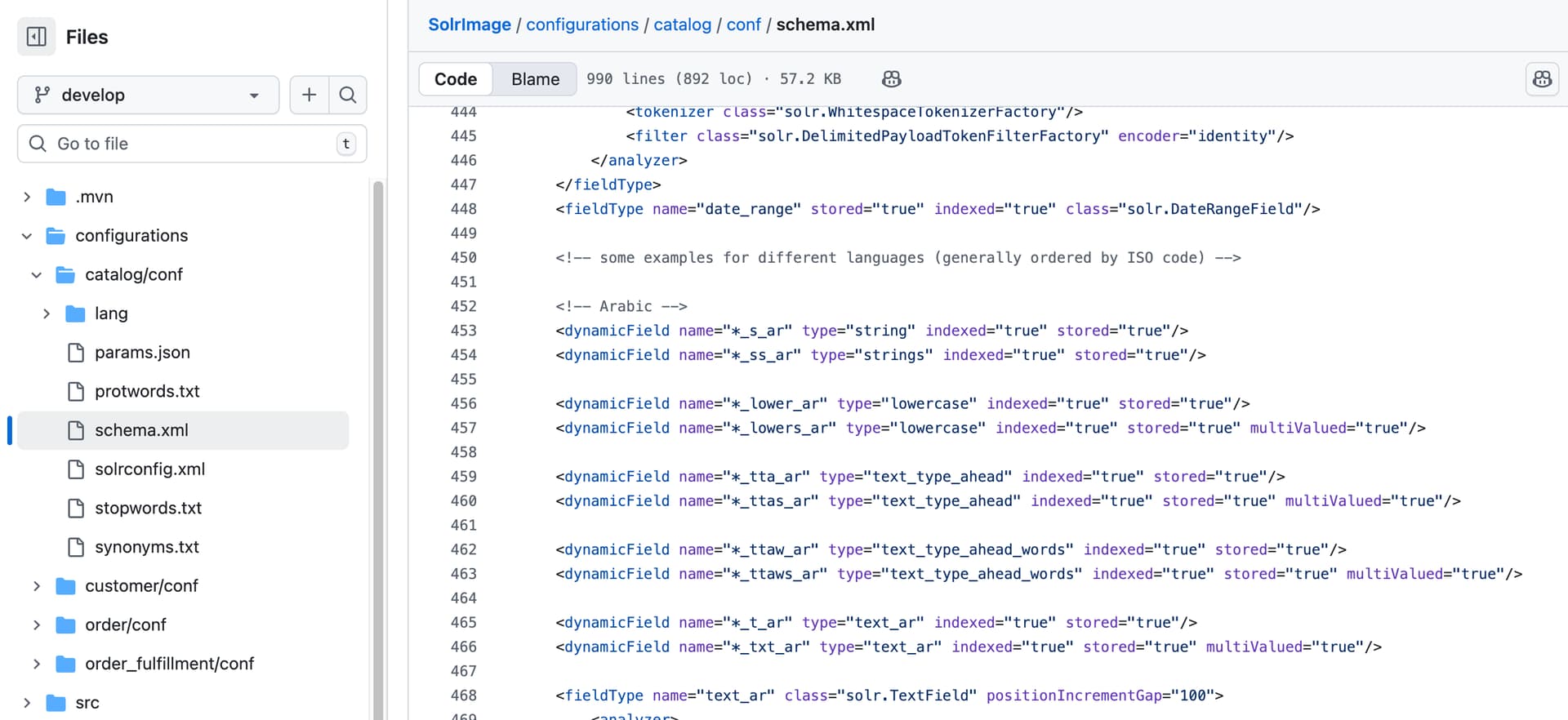
To download the default Solr Image, set the editSource flag to true and run flex:generate in your project:

Example: Below you will find example steps to add enhanced SOLR Spell Check Configuration for Arabic Compatibility
schema.xml changes
The following lines to add new dynamicField instances should be added to schema.xml below the existing dynamic English Spellcheck fields. These dynamic fields add the ar translated values of fields with the spellcheck variant to Solr, although since they are copied to the spellcheck_ar field, they are not indexed or stored.
<!-- Dynamic Arabic spellcheck fields -->
<dynamicField name="*_sc_ar" type="string" indexed="false" stored="false"/>
<dynamicField name="*_scs_ar" type="strings" indexed="false" stored="false"/>
Additionally, a new catch-all copy field for the Arabic spellcheck field needs to be added to schema.xml. This field copies all the above _sc_ar and _scs_ar field values into it so that the spellchecker can verify against this one field.
<!-- Catch-all copy field for Arabic spellcheck field -->
<field name="spellcheck_ar" type="text_general" indexed="true" stored="true" multiValued="true"/>
<copyField source="*_sc_ar" dest="spellcheck_ar"/>
<copyField source="*_scs_ar" dest="spellcheck_ar"/>
solrconfig.xml changes
The Arabic spellchecker needs to be added to the searchComponent in solrconfig.xml as seen below. These two spellcheckers are added to verify against the spellcheck_ar field for both a direct spell check strategy as well as a word break strategy. The minQueryLength & minBreakLength are configurable based on what makes sense for the language. Too short of a query length or break length will cause potential performance issues.
<!--   the arabic spellcheckers   -->
<lst name="spellchecker">
    <str name="name">default_ar</str>
    <str name="field">spellcheck_ar</str>
    <str name="classname">solr.DirectSolrSpellChecker</str>
    <str name="distanceMeasure">internal</str>
    <int name="minQueryLength">4</int>
</lst>
<lst name="spellchecker">
    <str name="name">wordbreak_ar</str>
    <str name="classname">solr.WordBreakSolrSpellChecker</str>
    <str name="field">spellcheck_ar</str>
    <str name="combineWords">true</str>
    <str name="breakWords">true</str>
    <int name="maxChanges">10</int>
    <int name="minBreakLength">3</int>
</lst>
These newly added spellcheckers will also need to be registered as the default requestHandler.
<!--   arabic spellchecker   -->
<str name="spellcheck.dictionary">default_ar</str>
<str name="spellcheck.dictionary">wordbreak_ar</str>
<str name="spellcheck.count">3</str>
Loading the changes
Your Solr Image would have to be rebuilt after making these changes. Running a full reindex job after these changes have rebuilt would reflect that the documents in Solr now have translatable fields with _sc_ar suffixes being copied into a spellcheck_ar field for those documents & can be verified in the Solr Admin.
Spellcheck for Arabic texts should now work after this on the example Commerce Storefront.
Additional Notes
If any more spellchecker customizations are needed in the future for other languages, similar changes would have to be made to solrconfig.xml and schema.xml files. Additionally, this link is a good resource for other customizations.
In order to only have certain spellcheckers apply on a Solr per-request basis, you can modify DefaultSolrSpellCheckContributor to pass the Solr params spellcheck.dictionary to specify the dictionaries that should apply. This can allow you to check the locale of the request, and if it’s english, for the example spellcheckers above you could pass default and wordbreak . If it’s an arabic locale, you could pass default_ar and wordbreak_ar . For more info, see the Solr Spellchecking for full documentation on the available spellcheck params.
Other Locale Considerations: Localized Notifications
Broadleaf’s out-of-box Notification Service can be extended to support localized messages.
By default, the Thymeleaf Notification Builder does not load localized variables. To enable this, you can extend it to use language-specific property files:
notification_ar.properties
notification_fr.properties
notification_es.properties
Example:
You may want to create a mail template that uses the variable notification.email.greeting.customer like this so that the template uses the values from notification_[lang].properties:
<p th:text="#{notification.email.greeting.customer(${firstName} + ' ' + ${lastName})}"></p>
You can override the out of box ThymeleafMessageBuilder and conditionally populate the locale there. For example adding support for the ar-AR locale:
import org.springframework.lang.Nullable;
import org.thymeleaf.TemplateEngine;
import org.thymeleaf.context.Context;

import com.broadleafcommerce.data.tracking.core.context.ContextInfo;
import com.broadleafcommerce.notification.service.TemplateNameResolver;
import com.broadleafcommerce.notification.service.ThymeleafMessageBuilder;
import com.broadleafcommerce.notification.service.autoconfigure.NotificationServiceProperties;

import java.util.Locale;

import lombok.extern.slf4j.Slf4j;

@Slf4j
public class MyThymeleafMessageBuilder extends ThymeleafMessageBuilder {

    public MyThymeleafMessageBuilder(NotificationServiceProperties properties, TemplateNameResolver templateNameResolver, TemplateEngine templateEngine) {
        super(properties, templateNameResolver, templateEngine);
    }

    @Override
    protected void addAdditionalPropertiesToThymeleafContext(Context thymeleafContext,
                                                             @Nullable ContextInfo contextInfo) {
        super.addAdditionalPropertiesToThymeleafContext(thymeleafContext, contextInfo);

        // conditionally sets locale here (or sets it from ContextInfo, which requires you to make
        // sure that it's populated)
        thymeleafContext.setLocale(Locale.forLanguageTag("ar-AR"));
    }
}